Best screen capture apps for Mac in 2026
Every Mac ships with a built-in screen recorder, but anyone who has tried to make a polished tutorial, product demo, or bug report knows the limits show up fast. No zoom, no cursor highlighting, no real editing, and no internal audio without a workaround.
The good news is the third-party landscape on macOS is genuinely strong. Whether you need a quick gif for a Slack message, a 30-minute course recording, or a launch video for your homepage, there is a Mac screen capture app built for the job.
This guide compares the best screen capture apps for Mac across price, output quality, editing power, and the specific use case each one is best at. There is no single winner - the right choice depends on what you are trying to ship.
The best screen capture apps for Mac compared
| App | Best for | Editor | Free tier | Starting price |
|---|---|---|---|---|
| Tight Studio | Polished tutorials, product demos, marketing videos | Full editor with zoom, cursor effects, AI voiceover | Yes (unlimited exports, watermarked) | $6/mo billed yearly ($9/mo monthly) |
| Screen Studio | One-off auto-zoomed product demos | Light editor, auto-zoom | Trial only (no exports) | $29/mo |
| ScreenFlow | Long-form courses and complex multi-track edits | Pro multi-track timeline | Trial | $169 one-time |
| Camtasia | Training videos with annotations and quizzes | Pro timeline | Yes (watermarked) | $179.88/yr |
| CleanShot X | Screenshots, gifs, quick recordings | Light, screenshot-focused | No | $29 one-time |
| Loom | Async messages and quick walkthroughs | Trim + AI cleanup | 25 videos, 5-min limit | $18/user/mo |
| OBS Studio | Live streaming, complex scene setups | None (recording only) | Free | Free |
| QuickTime Player | Quick raw captures | Trim only | Free (built in) | Free |
| Screenshot toolbar | Fastest possible capture | None | Free (built in) | Free |
| Snagit | Quick capture + lightweight markup | Light editor | Trial | $62.99/yr |
How to pick a Mac screen capture app
Three questions usually narrow the field fast.
1. What are you making? A 10-second gif for a bug report, a 5-minute product demo for a landing page, and a 60-minute course recording have different requirements. The bug report needs speed. The demo needs polish. The course needs a real editor.
2. How often do you record? A one-time recording for a launch video can live with a free tier or a one-time license like ScreenFlow. A weekly tutorial pipeline justifies a subscription that pays for itself in saved editing hours.
3. Do you need internal audio? macOS does not let apps capture system audio without a workaround. Some screen capture apps bundle a virtual audio driver. With others you install BlackHole or a similar driver yourself.
With those answers in mind, here is how each app stacks up.
Tight Studio - best for polished tutorials and product demos
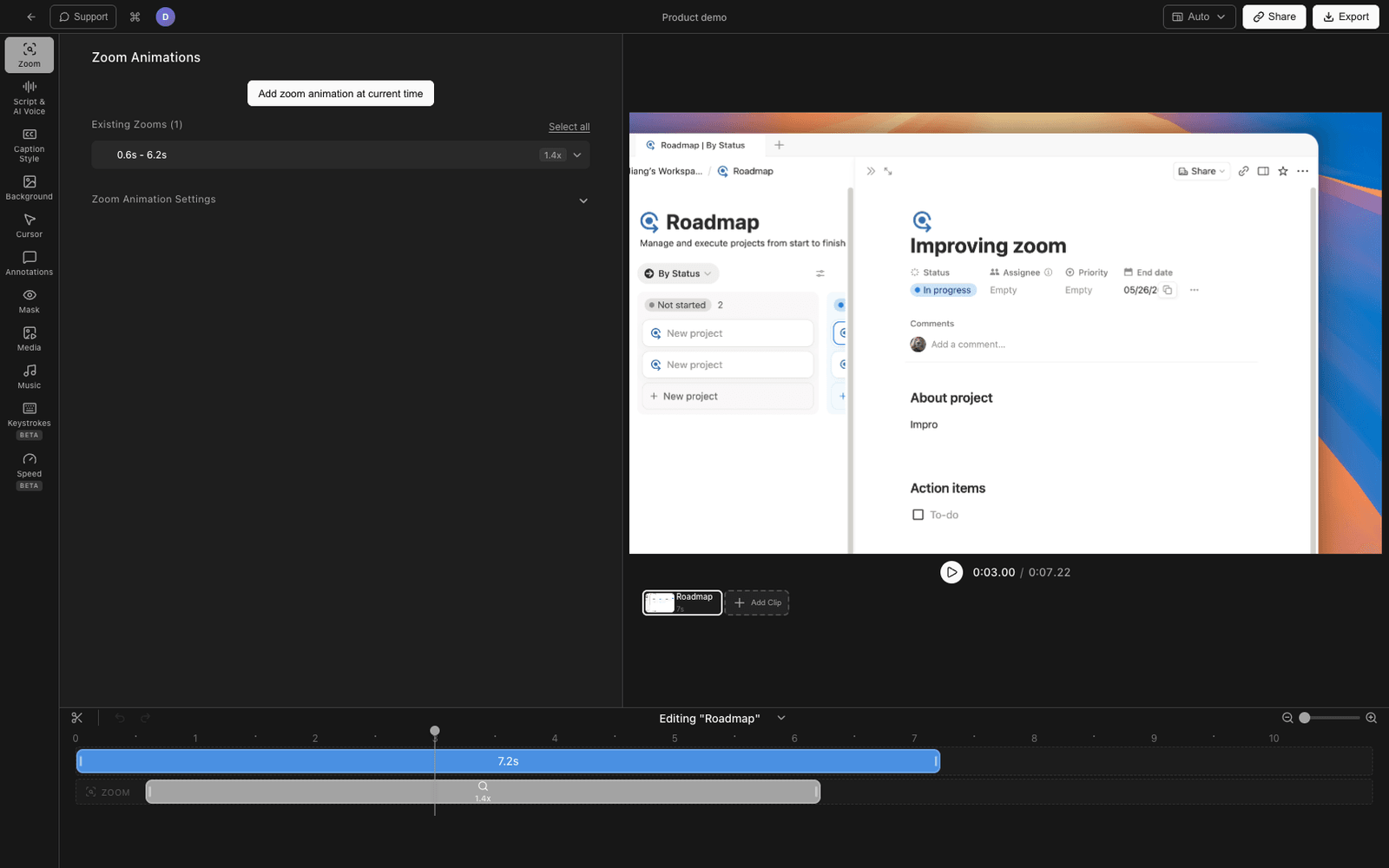
Tight Studio is a Mac screen recorder and editor built for the kind of videos that need to look finished without hours of post-production. It records your screen, then drops you straight into an editor designed for the most common screen-recording problems: shaky cursors, dense UIs that are hard to follow, and the fact that you almost always flub one line in a five-minute take.
The features that matter most for screen capture work:
- Zoom animation - smart zoom follows your clicks with motion blur and smooth panning. For dense product UIs and code editors, this is the single biggest quality-of-life feature.
- Cursor animation - animated cursor with click highlighting and sound effects so viewers never lose track of where you are clicking.
- AI voiceover - generate professional narration from text. Useful when you want a clean, on-brand voice without scheduling a recording session.
- Multi-take recording - record sections separately and combine them in the editor. Flub the third feature in a five-feature demo? Just re-record that segment.
- Text annotations - add text overlays with customizable fonts, sizes, and colors to call out important details.
- Intro and outro slides - add branded openers and closers without leaving the editor.
- Music - royalty-free background music library with volume control.
Tight Studio is at its best when the recording needs to look polished. Tutorials, product demos, launch videos, course intros, customer onboarding clips - the kind of recording where viewers should feel like they are watching something made on purpose. The free tier exports unlimited videos with a watermark; Starter is $6/mo billed yearly ($9/mo monthly), and Pro (with AI features) is $16/mo billed yearly.
It is Mac-only (Apple Silicon), focused on screen-recorded video, and does not currently capture internal system audio (you can pair it with a virtual audio driver if you need to record app sound).
Screen Studio - best for fast one-off demos
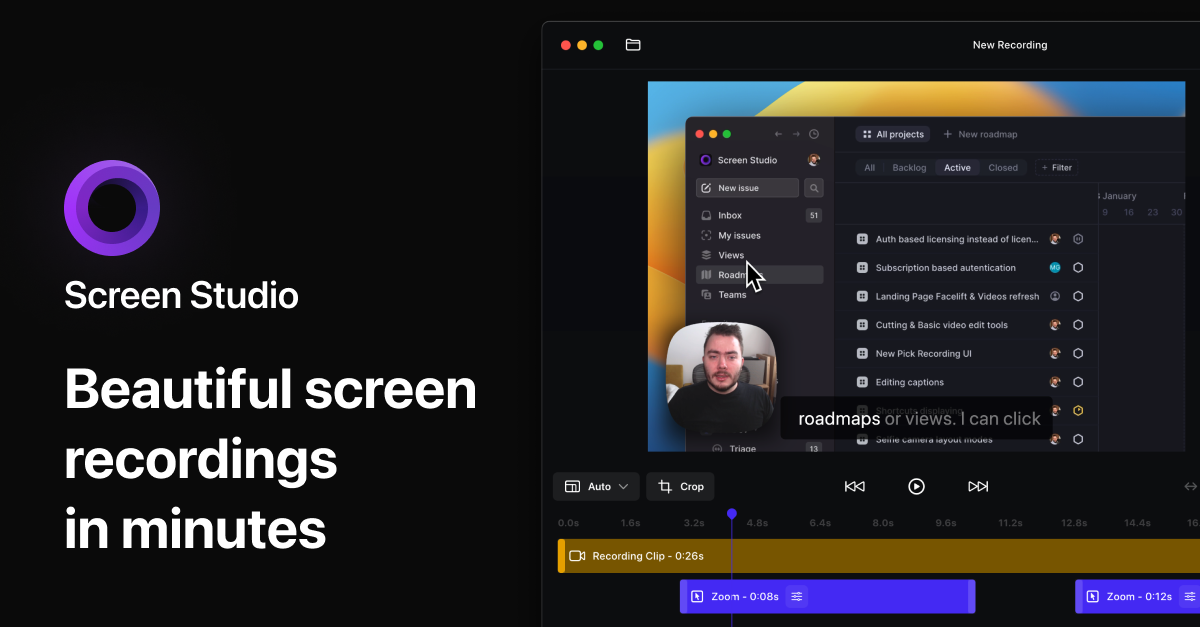
Screen Studio popularized the auto-zoom-on-click look that has become the visual signature of modern product demos. It is a Mac-only app focused tightly on that one job: record, auto-zoom, export.
The tradeoffs are honest. The editor is intentionally light. There is no multi-clip recording (a flubbed take means starting over), no AI narration, no styled captions, and no text or media overlays. The trial lets you try features but cannot export, so you need a paid subscription to ship anything.
Pick Screen Studio if you want the auto-zoom aesthetic with the absolute minimum amount of editing time per video, and you are comfortable with a tightly opinionated tool that polishes a single take.
ScreenFlow - best for long-form courses
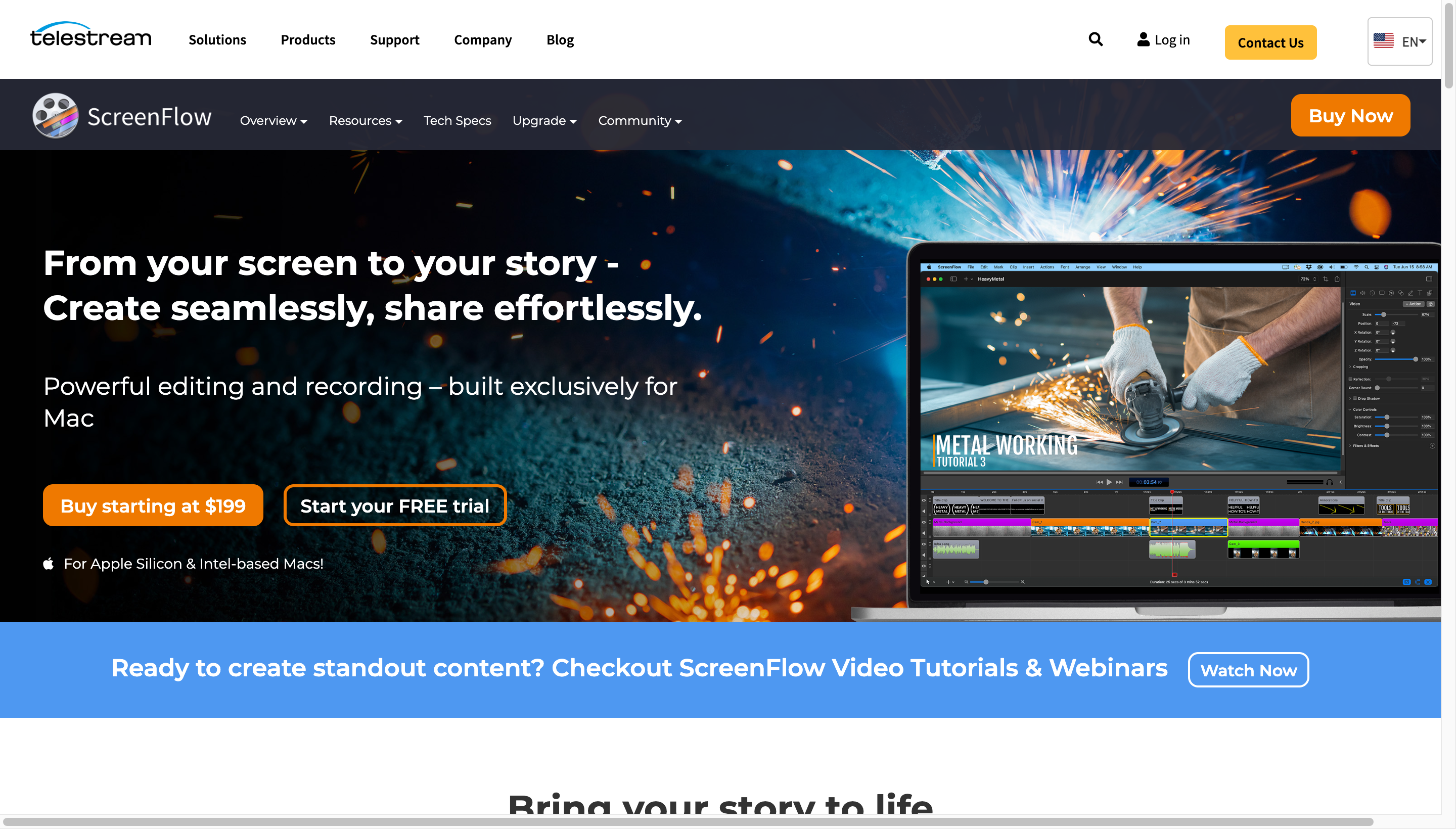
ScreenFlow has been the go-to Mac screen recorder for course creators and prosumer video work for over a decade. The editor is a true multi-track timeline with chroma key, motion paths, and audio mixing - closer to a video editing application than a screen recorder.
The cost of that power is a steeper learning curve. ScreenFlow expects you to think in tracks and clips, not just press record. If you are making a 60-minute training video with screen, webcam, picture-in-picture, transitions, and detailed audio mixing, ScreenFlow is purpose-built. For a 5-minute product demo, it is overkill.
The pricing is a one-time license, which is appealing for solo creators and educators who want predictable costs.
Camtasia - best for training videos with annotations
Camtasia is ScreenFlow’s longtime cross-platform competitor and a staple in corporate training. It includes a deep set of annotation tools (callouts, highlights, blur), interactive quiz overlays, and a large library of templates and stock assets. The free tier exports with a watermark, and paid plans start at $179.88/yr (Essentials) and go up to $499/yr (Pro, with AI avatars).
Camtasia is a strong fit if you produce training content where annotations and quizzes matter, or if you need a single tool that works on both Mac and Windows. The interface is busier than ScreenFlow’s and the file sizes are larger, but the feature set per dollar is one of the highest in the category.
CleanShot X - best for screenshots and quick recordings
CleanShot X is technically a screenshot app first, but its screen recording features are good enough to replace the built-in Mac tools for almost everyone. It records to gif or mp4, lets you scroll-capture long pages, and has the smoothest annotation tools on the platform. Pricing is a $29 one-time purchase (with one year of updates included), or $8/mo for the Cloud Pro plan with unlimited cloud storage.
What CleanShot X is not: a long-form video editor. There is no timeline, no multi-track audio, no zoom animation, no styled captions. It is built for the recordings that go in a Slack message, a Linear ticket, or a docs site - quick, clean, easy to share.
For most engineers and designers, CleanShot X handles 80% of day-to-day screen capture needs and pairs well with a heavier tool like Tight Studio for finished videos.
Loom - best for async video messages
Loom is the standard for quick async video messages. Open the extension or app, record screen plus webcam, share a link in seconds. The polish is intentionally lower than a dedicated marketing tool, but the speed-to-shareable-link is unmatched. The free tier covers 25 videos with a 5-minute limit per video; paid plans are $18/user/mo (Business) or $24/user/mo (Business + AI), priced per seat.
Loom AI summarizes recordings, removes filler words, and generates chapters automatically. The hosted player and view analytics are useful for sales, support, and internal teams.
Loom is excellent for “let me show you instead of writing this email” recordings. It is not the right tool for a polished landing-page demo, but you do not need the same tool for both jobs.
OBS Studio - best for live streaming and complex scenes
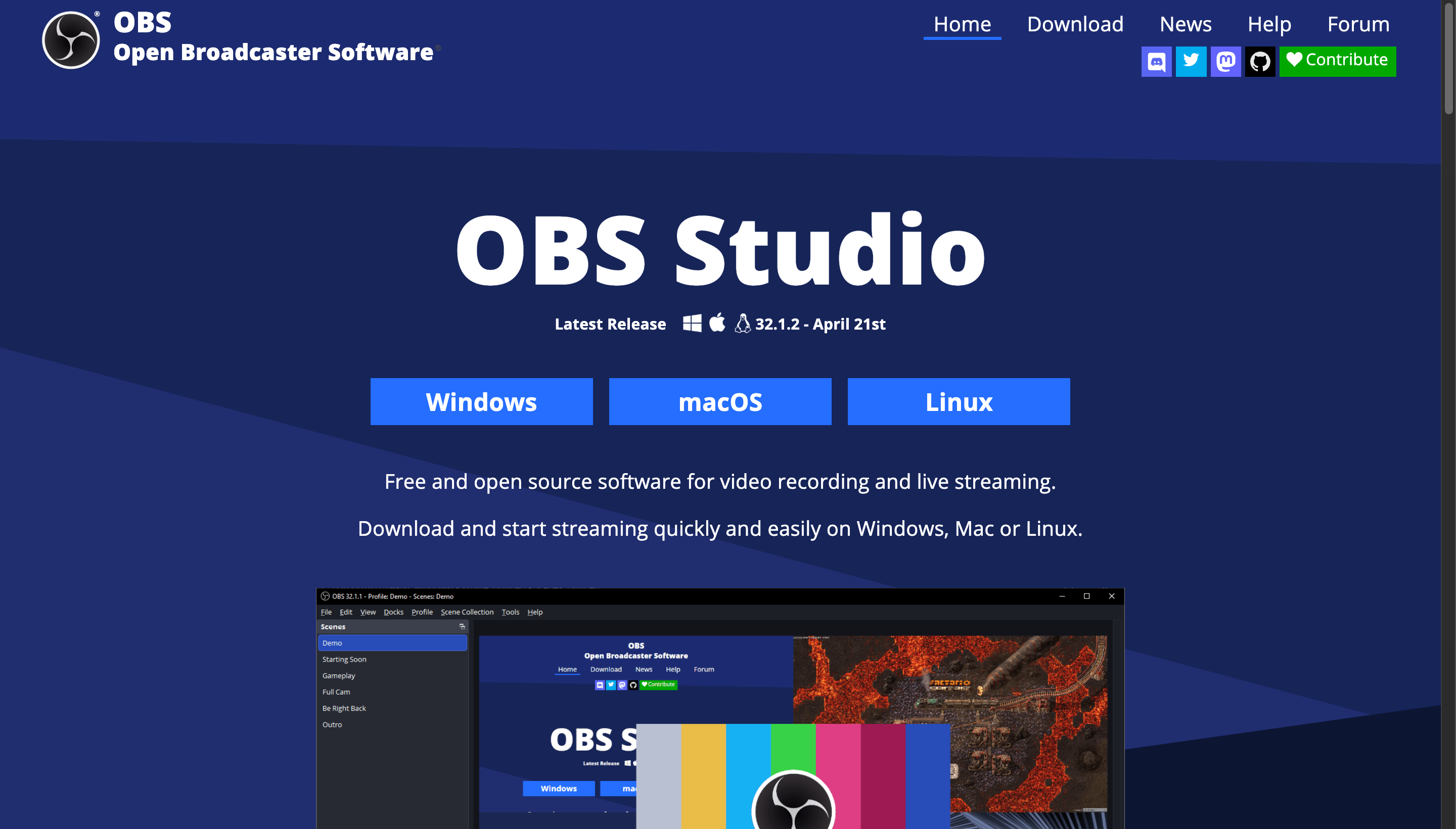
OBS Studio is free, open source, and the de facto standard for streaming and complex multi-source recording. If you need to switch between scenes mid-recording, layer multiple browser sources and webcams, or stream live to YouTube and Twitch, OBS is built for that.
The cost is a steep learning curve. OBS exposes encoder settings, scene transitions, audio routing, and dozens of other options that most screen recorder users do not want to think about. There is also no built-in editor - OBS records, and you bring your own editor.
For most product demos and tutorials, OBS is more than you need. For live streaming and broadcast-style work, nothing else on macOS comes close at the price.
QuickTime Player - best for raw captures with zero setup
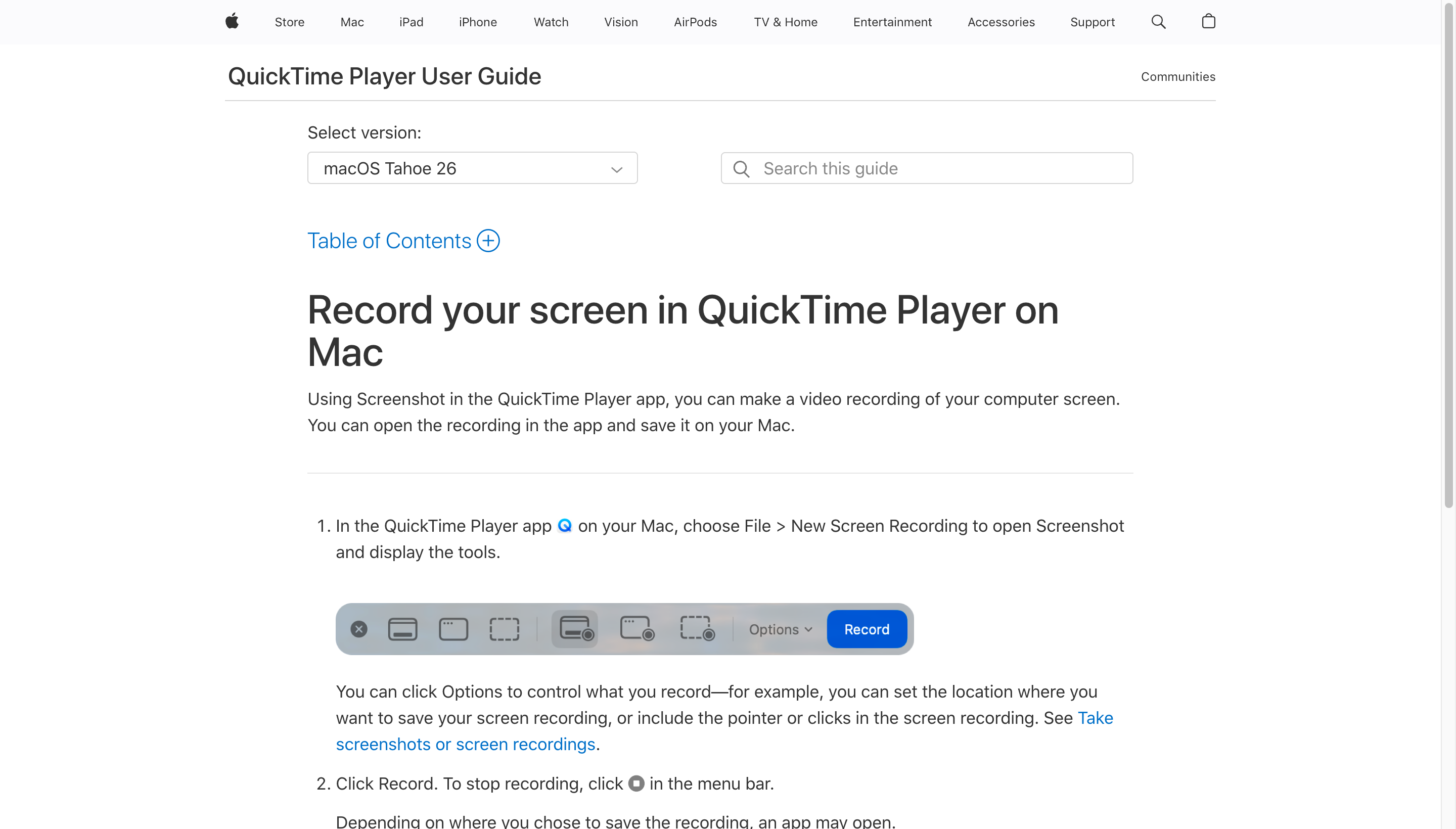
Already on every Mac. Open QuickTime, choose File > New Screen Recording, click record. You get a .mov file with microphone audio (no internal audio) and the ability to trim the start and end.
QuickTime is the right answer when you need a raw recording right now and will edit (or not edit) it elsewhere. For anything that needs zoom, cursor highlights, captions, or multi-take stitching, you will outgrow it within a week.
Screenshot toolbar - the fastest way to capture anything
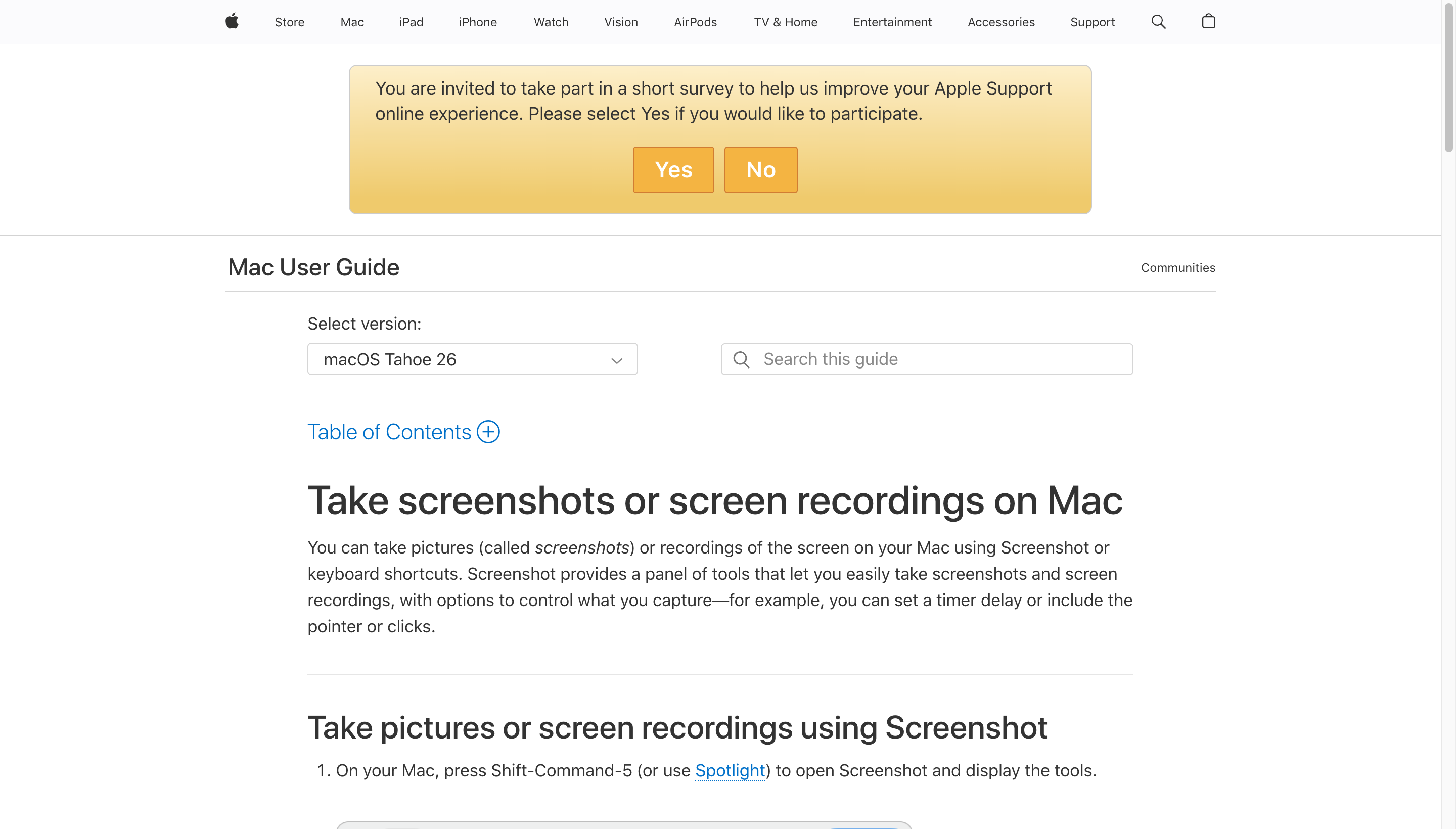
The Screenshot toolbar (Cmd + Shift + 5) is even faster than QuickTime. Pick “Record Entire Screen” or “Record Selected Portion,” click record, click stop. The recording lands on your Desktop.
It is the right tool when speed matters more than polish - bug reports, quick references, internal Slack messages. For a deeper walkthrough, see our guide on how to screen record on Mac.
Snagit - best for capture-plus-markup
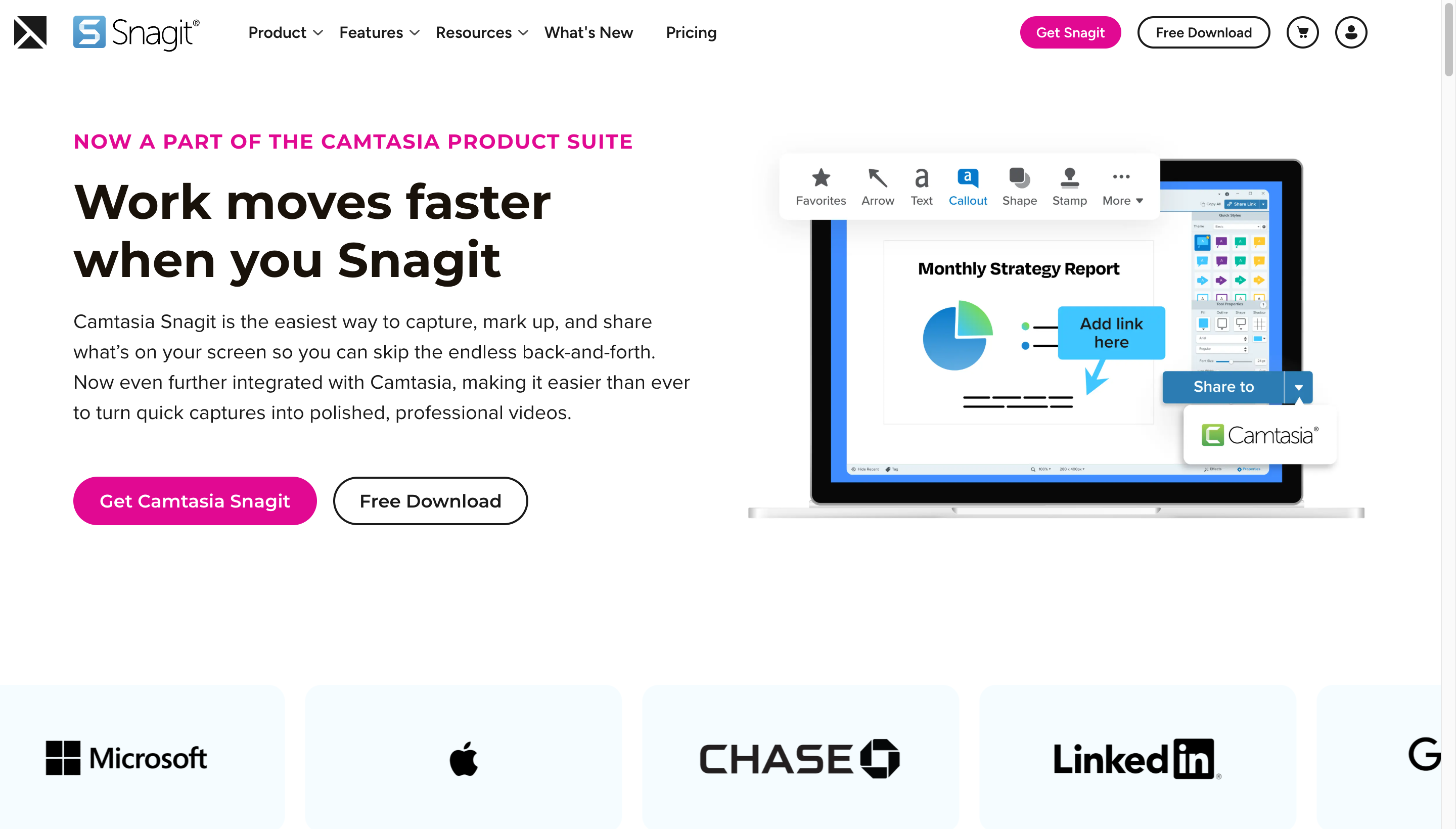
Snagit, from the makers of Camtasia, focuses on screenshots and short recordings with strong markup tools. Step-by-step guides, callouts, numbered annotations, and quick image edits are where it shines.
Snagit overlaps with CleanShot X in scope. CleanShot X has the cleaner native macOS feel; Snagit has the deeper template library and is the standard at many enterprise customers. Either one is a fine pick for documentation and support workflows.
Free vs paid screen capture apps on Mac
A common question: do you need to pay for a Mac screen capture app at all?
The honest answer depends on what you are recording.
- For raw captures - Cmd + Shift + 5 is genuinely fine. It is fast, reliable, and free.
- For quick gifs and screenshots - CleanShot X (paid) or Kap (free) are both excellent.
- For async messages - Loom’s free tier (25 videos, 5-min limit) is plenty for most teams.
- For polished demos and tutorials - this is where free options narrow. Tight Studio’s free tier exports unlimited videos with a watermark, which works for evaluating the editor before paying. Camtasia is similar. Editing a screen recording into something polished in iMovie or DaVinci Resolve is doable, but it is hours of work compared to a tool built for the job.
- For live streaming - OBS Studio is free and best in class.
The pattern most professionals settle into: a free tool for quick captures, plus one paid tool for the recordings that need to look finished.
What to look for in a Mac screen capture app
A few features have an outsized effect on final video quality.
Zoom and pan animation. Watching a recording where the cursor moves around a 4K display without any zoom is visually exhausting. Smart zoom that follows clicks transforms how watchable a tutorial feels. Tight Studio and Screen Studio both do this well; ScreenFlow and Camtasia let you keyframe it manually.
Cursor highlighting and click effects. Default macOS cursors are tiny on retina displays. A larger animated cursor with click highlights makes every interaction obvious without manual annotations.
Multi-take recording. Screen recordings rarely come out clean on the first take. The ability to record sections separately and stitch them together turns a 30-minute “redo the whole thing” into a 30-second re-record.
Captions and text overlays. Most product videos are watched without sound. Captions and on-screen labels are not optional - they are how your video performs on social and embedded on landing pages.
Voiceover quality. Live narration over a screen recording is hard to do consistently. AI voiceover from text gives you a clean, on-brand result every time.
Export presets and quality. A good app exports a sensibly sized 1080p mp4 by default without forcing you into ffmpeg. Bonus points for direct shareable links and one-click upload.
Frequently asked questions
What is the best screen capture app for Mac?
It depends on what you are recording. For polished tutorials, product demos, and marketing videos, Tight Studio is built for the job, with smart zoom, cursor animation, AI voiceover, and multi-take recording. For long-form courses with complex edits, ScreenFlow is the industry standard. For quick async messages, Loom is the fastest. For raw captures, the built-in Cmd + Shift + 5 toolbar is genuinely fine. Most professionals end up using two tools - a quick-capture tool plus a polished-output tool.
Does Mac have a built-in screen capture app?
Yes. Every Mac running macOS Mojave (10.14) or later has a built-in screen recorder accessible through the Screenshot toolbar (Cmd + Shift + 5) or QuickTime Player. Both record to .mov with microphone audio. Neither captures internal system audio without a virtual audio driver like BlackHole.
What is the best free screen capture app for Mac?
The built-in Screenshot toolbar (Cmd + Shift + 5) is free and reliable for raw captures. OBS Studio is free for live streaming and complex multi-source recording. Loom has a free tier of 25 videos with a 5-minute limit per video. Tight Studio offers a free tier with unlimited exports (watermarked) and the full editor included. Camtasia also has a free tier with watermarked exports if you need annotation tools. Kap is a free, open-source option for quick gifs and short recordings.
What is the best screen capture app for product demos on Mac?
For finished, narrated product demos that go on landing pages and in sales decks, Tight Studio is purpose-built, with click-following zoom, cursor effects, AI voiceover, and an editor designed for screen recordings specifically. Screen Studio is a strong alternative if you want the auto-zoom aesthetic with minimal editing. ScreenFlow handles longer demos with complex multi-track edits.
Can I capture internal audio on Mac when screen recording?
Not natively. macOS does not let apps capture system audio without a virtual audio driver. The most common solution is to install BlackHole, route system audio through it, and select it as your input in your screen recorder. Some third-party screen capture apps bundle this driver to make setup easier.
What is the best screen recording app for Mac for tutorials?
For tutorials, the features that matter most are zoom and pan, cursor highlighting, captions, and easy editing. Tight Studio, ScreenFlow, and Camtasia all handle tutorial work well. Tight Studio is the fastest to a polished result for short-to-medium tutorials. ScreenFlow and Camtasia are stronger for hour-long course content with multiple tracks.
Is Loom or Tight Studio better for Mac screen recording?
They solve different problems. Loom is optimized for fast async video messages with a shareable link in seconds, and the polish is intentionally lower. Tight Studio is optimized for finished, edited videos that go on landing pages and in marketing - with smart zoom, cursor animation, AI voiceover, multi-clip recording, and a real editor. Pricing reflects the difference too: Tight Studio is $6/mo (yearly) for a single account, while Loom is $18/user/mo and prices per seat. Many teams use both: Loom for internal async messages, Tight Studio for external-facing videos.
How much does a good screen capture app for Mac cost?
Free options like the built-in Screenshot toolbar and OBS Studio cover a lot of ground. Paid tools range from $29 one-time (CleanShot X) to $499/yr (Camtasia Pro). Subscription tools start around $6/mo (Tight Studio Starter, billed yearly) and go up to $29/mo (Screen Studio) and $18/user/mo (Loom Business). ScreenFlow ($169 one-time) is one of the few traditional one-time licenses still around, popular with solo creators who want predictable costs.